Reviewing historic data using Inventory Snapshots
Whenever an update happens to Carbon+Alt+Delete that affects emission factors or calculation methods, an Inventory Snapshot is created in the Reports view.
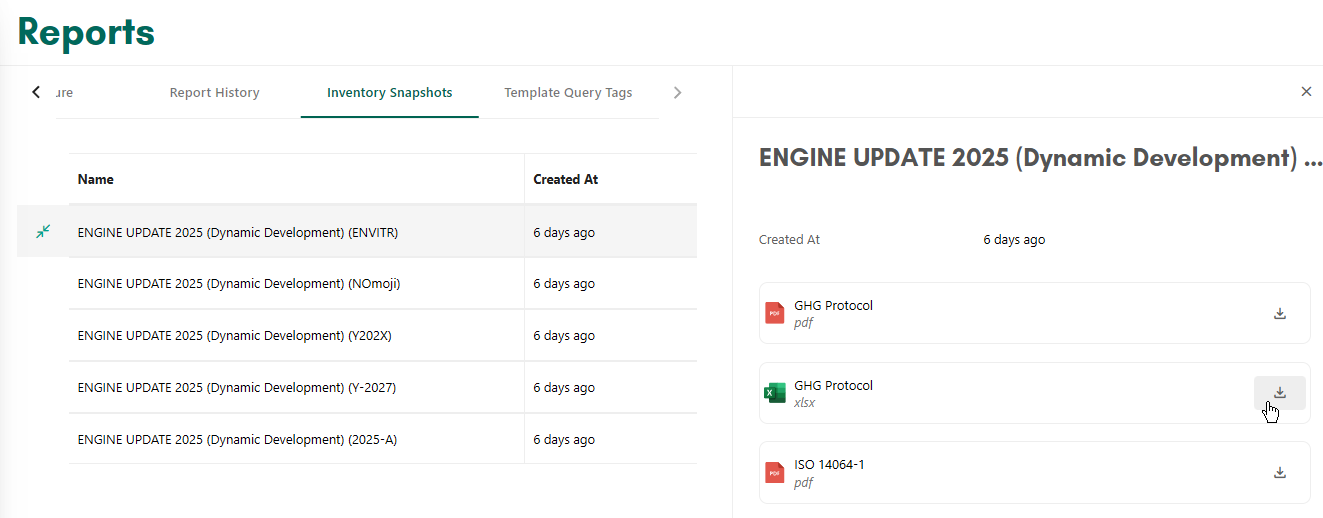
The snapshot will be created for each reporting period including reports for all reporting formats (GHGP, ISO, SECR, ESRS, PCF, Internal, and Full Inventory Export).
Viewing inventory snapshots in dashboards
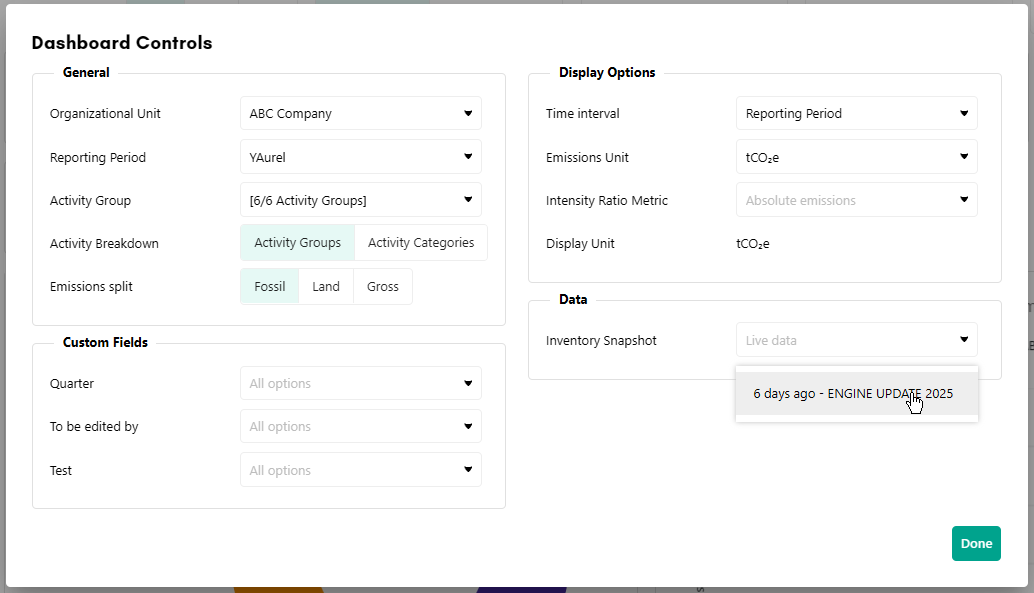
By going into the More menu in the Insights tab on the Dashboards page, you can select an Inventory Snapshot to review the data from before the update happened.
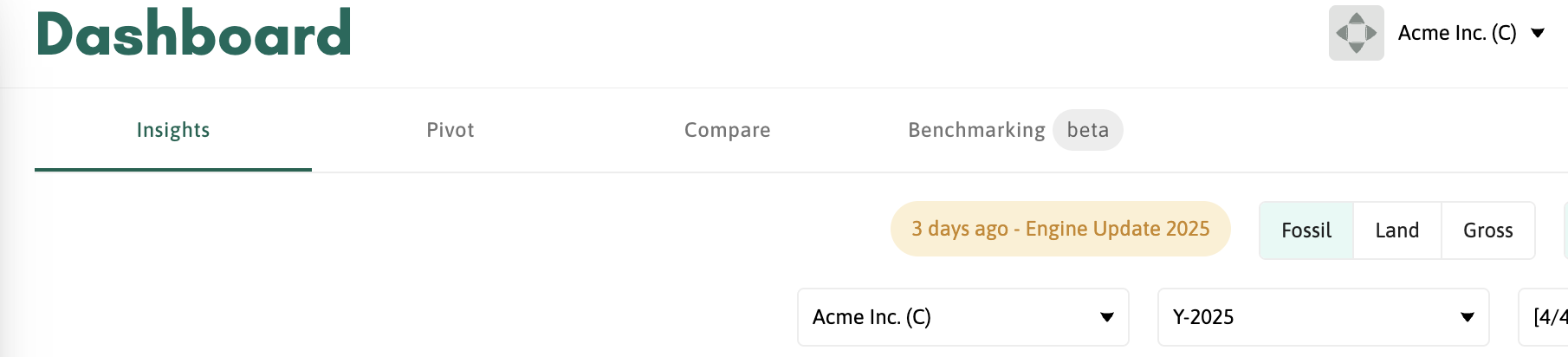
When reviewing an inventory snapshot, this will be made visible in the dashboard by a label reflecting the snapshot name.
Comparing current data with snapshot data
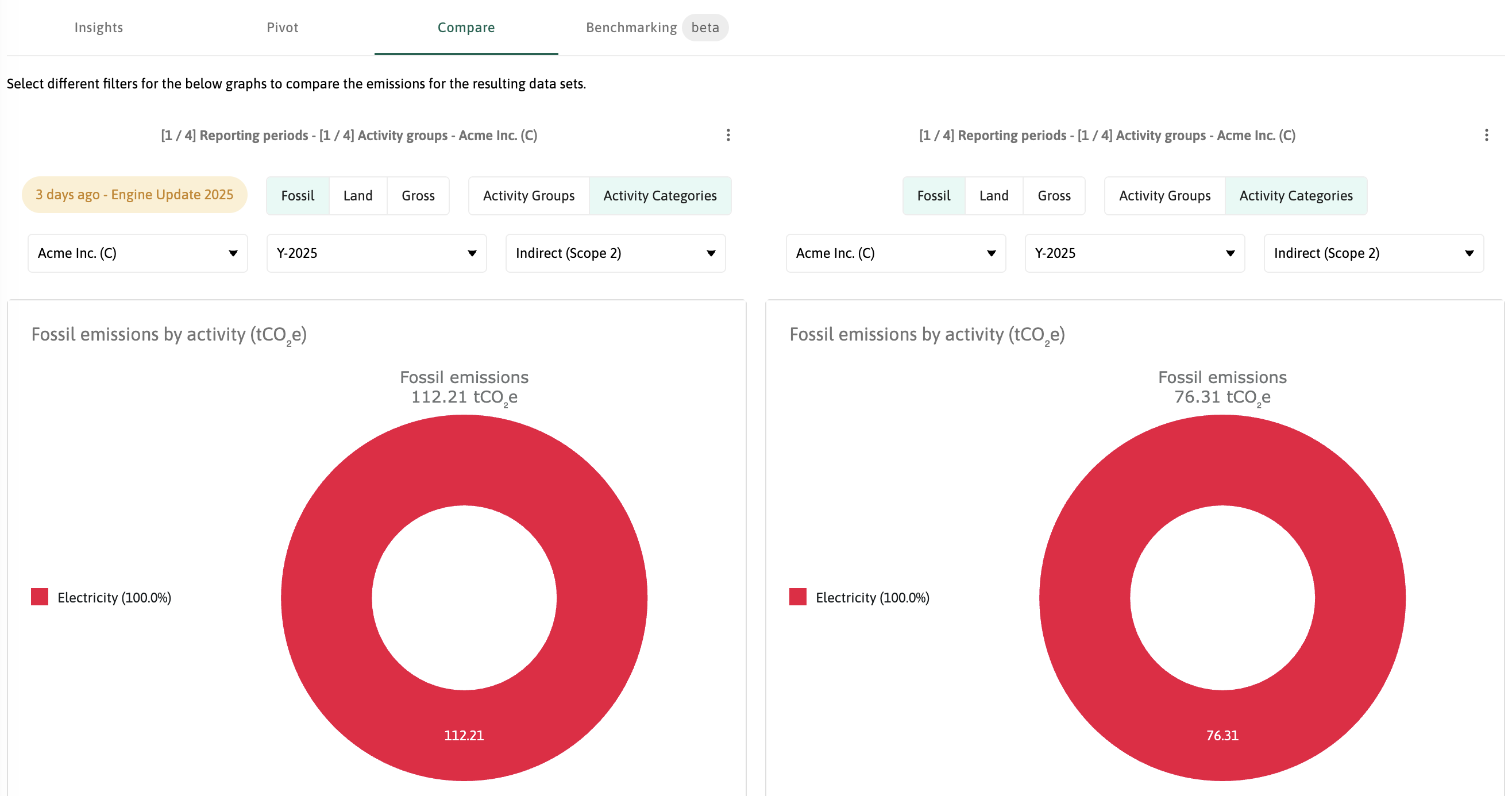
Inventory snapshots are also available in the Compare tab in the Dashboards page. Unlike Insights, this is called "See all filters" in Compare and is accessed via the vertical ellipsis menu to the right of the chart header.
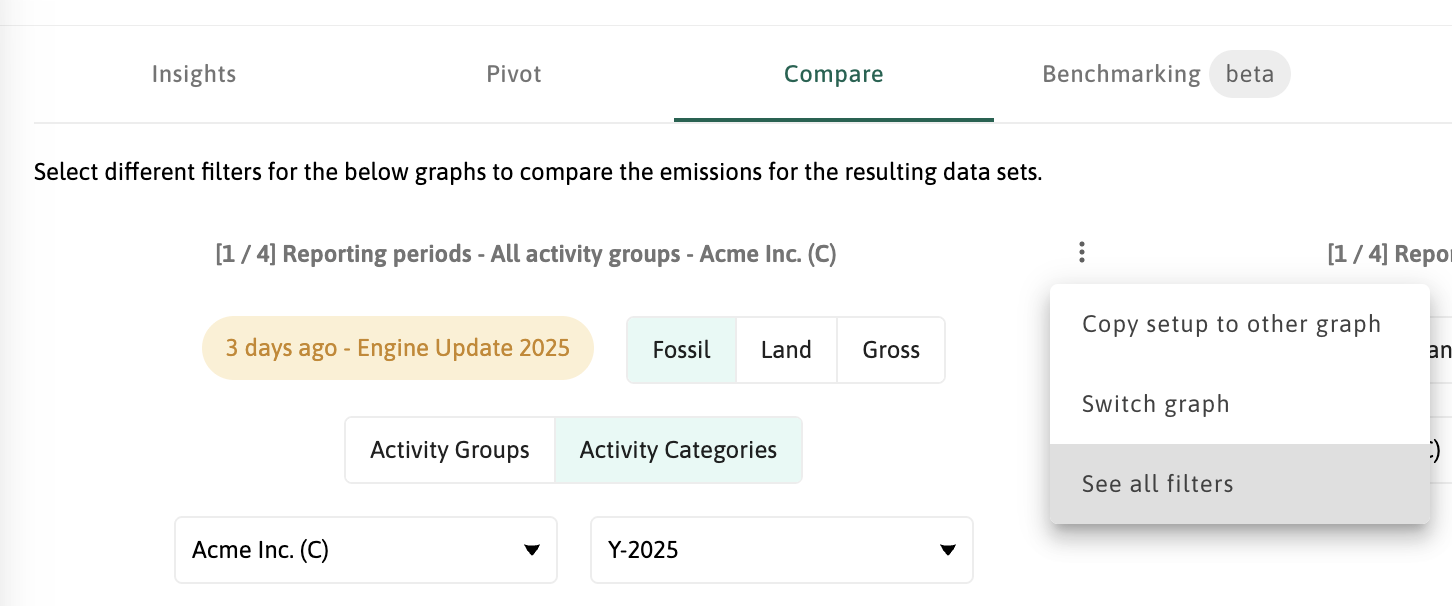
By choosing an Inventory Snapshot in one chart, and current data in the other, you can now easily compare data from before an engine update and after.