
Setting up Single Sign-On (SSO)
Carbon+Alt+Delete supports Single Sign-On for Microsoft users using Entra. With this enabled, users of your defined domain will be able to sign in using their Microsoft credentials.
Enabling Single Sign-On
Go to Consultancy settings > Security, specify the email domain you want, and toggle "Enable SSO" on. Please note that enabling SSO will enforce it for user with an email matching the domain. This means all users will be logged out and will need to log in again using SSO.
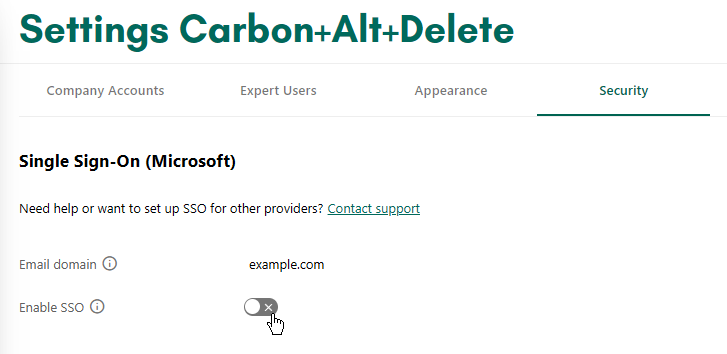
Once configured, any user in the consultancy with a Microsoft account matching that domain can log in with their Microsoft credentials. Users from other domains in your account will still be able to sign in using email and password.
Trusting Carbon+Alt+Delete
The first time you log in using SSO, you might be greeted by a screen to trust Carbon+Alt+Delete. This prompt might also not appear at all if your Microsoft Entra administrator has already approved Carbon+Alt+Delete for all users.
For more information on reviewing and taking action on consent requests in Entra, see this article.