
How to set up Benchmarking
This article eplains how to set up Benchmarking and how to review the results. For a detailed explanation of the methodology and calculations, see this article.
The goal of the benchmarking functionality within Carbon+Alt+Delete is to compare the carbon footprint of a given company with the carbon emissions of its peers. The functionality provides an emission range in similar industries, as well as where the given company is on this range.
Filling in company details
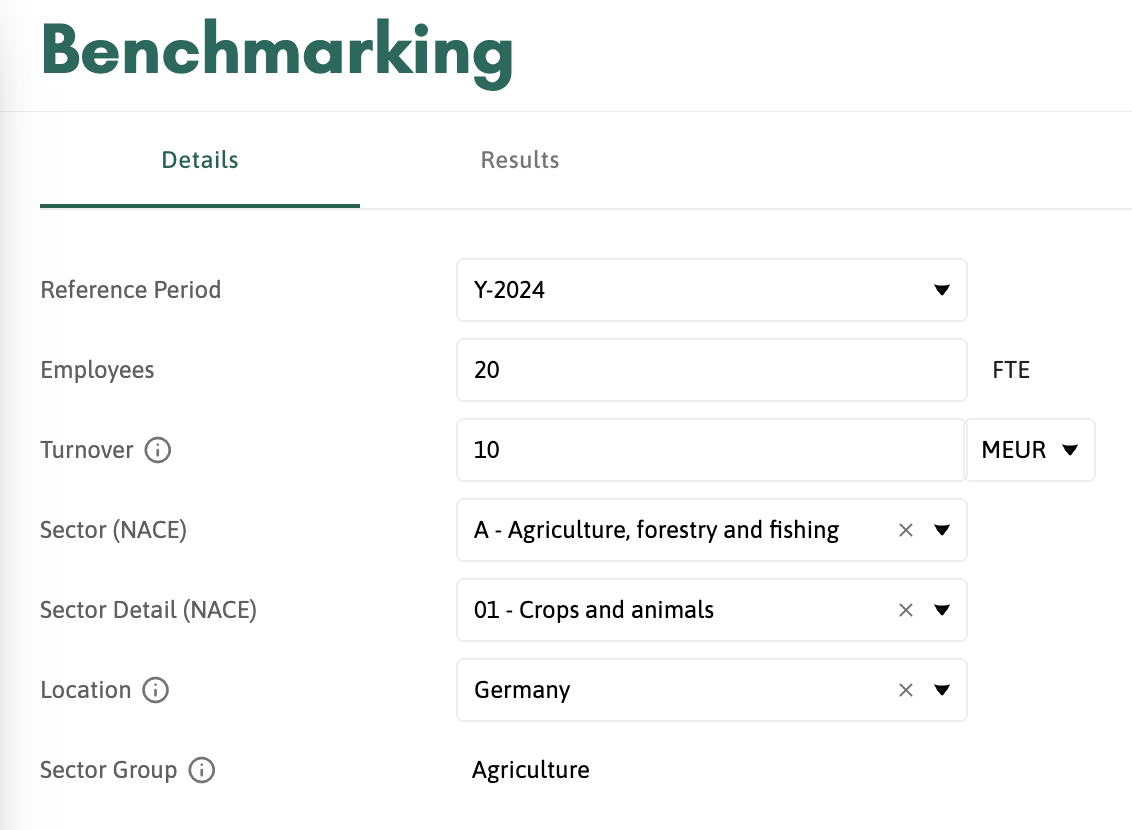
Benchmarking can be found under the Analyse section. In the first tab, Details, you fill in the company information that will be the base for the benchmark comparison. You need to fill in all of the fields to get results (Sector Group is filled in automatically based on the Sector and Sector Detail).
We invite all companies to fill in the Benchmarking Details as this will further improve the benchmarking going forward.
Reviewing the benchmarking results

The bechmark results are reviewed in the Results tab. The company results are reflected by the grey pin on the line and the different fields represent the minimum value, the 25th percentile, the median, and the maximum value of the benchmark.
The results can be viewed by absolute emissions, or by intensity in turnover or by FTE. There is also the option to toggle between different Sector Groups.