
Guest guide for our Trainings and Product Updates
At Carbon+Alt+Delete, we use Roam On-Air events to host our Product Trainings and Product Updates. This article will walk you through what to expect when you join. Roam's On-Air feature is built to feel more like a real theater than a typical video call — here is how to make the most of it.
Joining the event
You will receive a link to your event by email or SMS. Clicking the link will take you directly into the Roam On-Air Theater without needing to create an account or download any software. Once inside, you will be placed in the audience alongside other attendees, with the stage front and center.
Choosing your seat
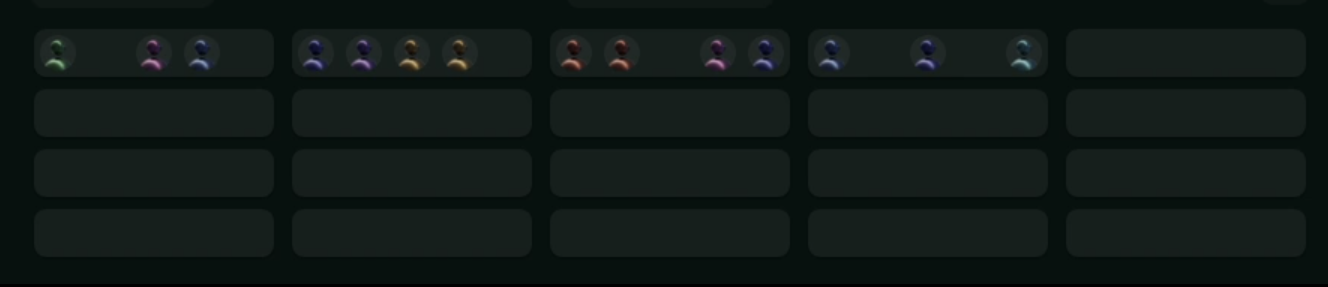
One of the first things you will notice is that the audience is laid out in rows — just like a real theater. You are free to move between seats and rows before and during the event. Where you sit matters: it determines who you can whisper to during the presentation (more on that below). If you spot someone you know, or would like to sit near a particular group, you can navigate to their row.
During smaller events and gatherings, the presenter may invite you to the stage for a more interactive session. You will receive a notification with a button to join the stage in these cases.
Whispering with your row
While the presenter is on stage, you can have a private side conversation with the people sitting in your row. This works just like leaning over to whisper to the person next to you at a live event — the presenter cannot hear you, and neither can anyone outside your row.
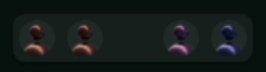
To start whispering, simply use the audio controls that appear for your row. It is a great way to react to what is being said, ask a quick question of a colleague, or just stay connected with the people around you — without disrupting the presentation.
Reacting to the presenter
You are not just a passive viewer. On-Air lets the audience respond to the presenter in real time using expressive audio reactions: clapping, laughing, and booing.
These reactions are not silent emoji clicks — they play as actual stereo audio in the theater. Importantly, the reactions are cumulative: the more people who clap at the same time, the louder the applause becomes. This creates the kind of live energy that is normally lost on video calls, and presenters can hear and feel the crowd responding to them.
To react, use the reaction buttons visible in the audience interface during the event.
Asking a question with the Q&A mic
On-Air includes a dedicated Q&A mic feature that lets audience members speak directly to the whole theater — not just type into a chat box.
When the presenter opens the floor for questions, you can queue up to take the mic. Requests are handled in first-come, first-served order. When it is your turn, you will broadcast audio-only to the entire audience, and the presenter can respond directly.
If multiple people want to ask a question at the same time, the queue ensures an orderly handover from one speaker to the next.
Other things to know
Recording: All trainings and product updates are recorded and you will receive a link to the recording afterwards.
No account required: You do not need a Roam account to attend as a guest. Your registration link is your entry point.