
Multi-factor authentication in Carbon+Alt+Delete
Multi-factor authentication (MFA) adds a second verification step to your login. Even if your password is compromised, your account cannot be accessed without the additional code.
What is multi-factor authentication?
When MFA is enabled, logging in requires two things: your password, and a six-digit code generated by an authenticator app on your phone or computer. The code changes every 30 seconds and is tied to your account. It cannot be reused or guessed from outside your device.
This type of MFA is called TOTP (Time-based One-Time Password). It works with any standard authenticator app, including:
- Google Authenticator
- Microsoft Authenticator
- Authy
- 1Password
MFA in Carbon+Alt+Delete is set up and managed by each user individually. It is available for all user types, expert users and company users alike. Admins cannot enable or disable MFA on behalf of another user, but they can reset access if a user loses their device (see Lost access to your device below).
Setting up MFA
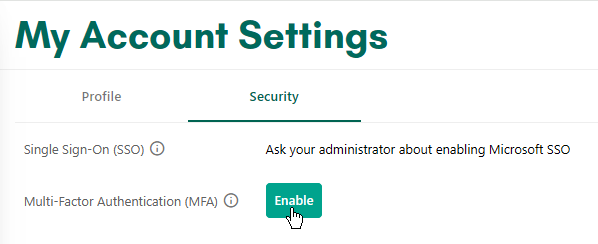
Go to My Account → Security. Under Multi-factor authentication, click Enable.
You will be asked to confirm your identity before proceeding:
- If you log in with a password: enter your current password.
- If you log in with SSO: you will be redirected to Microsoft to confirm your identity, then returned to the setup flow automatically.
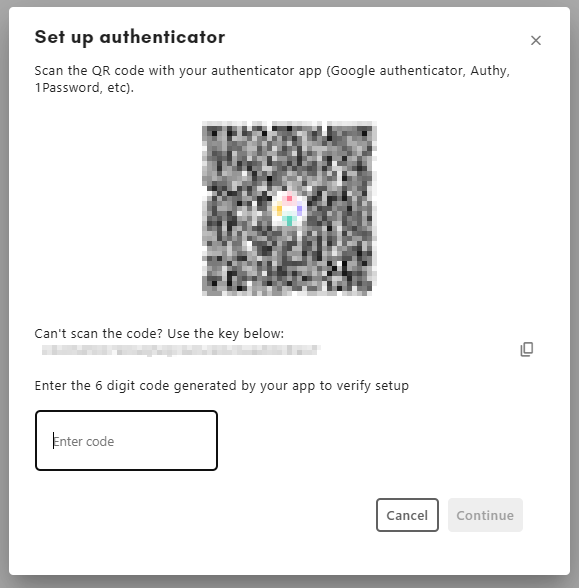
Once confirmed, a QR code is displayed. Open your authenticator app, add a new account, and scan the code. If you cannot scan it, tap "Can't scan the code?" to reveal a text key you can enter manually.
Enter the six-digit code shown in your app to verify the setup. If the code is accepted, setup is complete.
On the final screen, you will be shown 10 recovery codes. Store these somewhere safe — in a password manager, printed out, or another secure location. Each code can only be used once. These are the only way to access your account if you lose your authenticator device. They are not shown again after you close this screen.
After setup, your login security will be shown as Password & MFA or SSO & MFA in the user list visible to admins.
Logging in with MFA
After you enter your password or complete SSO, a second screen asks for your authentication code.
Open your authenticator app and enter the current six-digit code for your Carbon+Alt+Delete account. The code refreshes every 30 seconds (if it is about to expire, wait for the next one).
If you do not have access to your authenticator app, enter one of your recovery codes instead. The same input field accepts both.
You have five minutes to complete this step. If the window expires, you are returned to the login screen and can start again.
Recovery codes
Recovery codes are generated when you first enable MFA. There are 10 codes and each one works only once. After a code is used, it is permanently consumed and cannot be reused.
Use a recovery code the same way you would use your authenticator code: enter it at the MFA login screen or when prompted during the disable flow.
If you use all 10 codes and no longer have access to your authenticator app, you will need an admin to reset your access. See Lost access to your device.
Disabling MFA
Go to My Account → Security. Under Multi-factor authentication, click Disable.
You will be asked to confirm your identity first (password or SSO, same as during setup), then to enter a code from your authenticator app or a recovery code to confirm the action.
Once disabled, MFA is removed from your account and all recovery codes are deleted. The next login requires only your password or SSO.
If you have lost your MFA device
If you no longer have access to your authenticator app and have also used or lost all your recovery codes, you cannot log in. An admin at your consultancy must reset your account.
What the admin needs to do:
- Go to Consultancy Settings → Expert Users (or Company Accounts for company users).
- Find the affected user and deactivate their account.
- Reactivate the account.
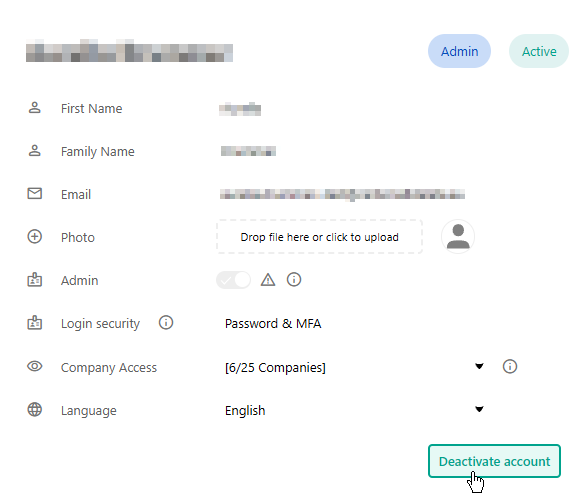
Deactivating and reactivating the account clears the MFA setup and resets the password. The user receives a password reset email and can set a new password.
On their next login, MFA will no longer be active. If they want to use MFA again, they can go through the setup flow from scratch.
If you are the only admin on your consultancy and you are locked out, contact Carbon+Alt+Delete support directly.