
Working with preferred datasets
Your preferred datasets decide where Carbon+Alt+Delete looks first when it automatically applies emission factors to your inventory. Setting them up well means fewer manual corrections later, and it's also how you make sure your own custom emission factors get picked up.
In this article, we'll explain how activity categories and factor categories fit together, how to set your preferred datasets, and how to make the most of your custom datasets.
How it all ties together
There are three pieces that fit together:
- Activity categories follow the GHG Protocol, for example Stationary Combustion (Scope 1), Electricity (Scope 2) or Business Travel (Scope 3).
- Factor categories describe what kind of emission factor something is, for example Fuels, Vehicles or Electricity. Every emission factor belongs to exactly one factor category.
- Datasets are collections of emission factors from a source, such as GOV.UK GHG Reporting Factors or Ecoinvent. A single dataset usually contains emission factors from many different factor categories.
Each activity category accepts one or more factor categories. Mobile Combustion, for instance, accepts both Fuels and Vehicles. When you choose preferred datasets for an activity category, you're really choosing which dataset to use for each factor category that activity category accepts. That's why the options appear as factor category - dataset, for example Fuels - GOV.UK GHG Reporting Factors and Vehicles - GOV.UK GHG Reporting Factors.
The table below shows which factor categories each activity category accepts.
| Activity category | GHGP | ISO 14064-1 | Scope | Factor categories |
|---|---|---|---|---|
| Stationary Combustion | 1.1 Stationary Combustion | 1.1 Stationary Combustion | Scope 1 | Fuels |
| Mobile Combustion | 1.2 Mobile combustion | 1.2 Mobile combustion | Scope 1 | Fuels, Vehicles |
| Process Emissions | 1.3 Process emissions | 1.3 Process emissions | Scope 1 | Industrial Emissions |
| Fugitive Emissions | 1.4 Fugitive emissions | 1.4 Fugitive emissions | Scope 1 | Industrial Emissions |
| Electricity | 2.1 Purchased electricity | 2.1 Purchased electricity | Scope 2 | Electricity |
| Steam, Heat, Cooling | 2.2 Purchased steam, heating, cooling | 2.2 Purchased steam, heating, cooling | Scope 2 | Heat and Steam |
| Goods & Services | 3.1 Purchased goods and services | 4.1 Purchased goods and services | Scope 3 | Goods, Services, and Assets, Spend |
| Capital Goods | 3.2 Capital goods | 4.2 Capital goods | Scope 3 | Goods, Services, and Assets, Spend |
| Transport Upstream | 3.4 Upstream transportation and distribution | 3.1 Upstream transport and distribution of goods | Scope 3 | Transport, Freight, Spend |
| Waste | 3.5 Waste generated in operations | 4.3 Disposal of waste | Scope 3 | Waste, Spend |
| Business Travel | 3.6 Business Travel | 3.4 Business Travel | Scope 3 | Transport, Freight, Spend |
| Commuting | 3.7 Employee commuting | 3.3 Employee commuting | Scope 3 | Transport, Freight, Spend |
| Leased Assets as Lessee | 3.8 Upstream leased assets (as lessee) | 4.4 Use of leased assets (as lessee) | Scope 3 | Fuels, Industrial Emissions, Electricity, Spend |
| Transport Downstream | 3.9 Downstream transportation and distribution | 3.2 Downstream transport and distribution of goods | Scope 3 | Transport, Freight, Spend |
| Processing of Product | 3.10 Processing of sold products | 5.1 Use of products | Scope 3 | Fuels, Industrial Emissions, Electricity, Spend |
| Use of Product | 3.11 Use of sold products | 5.1 Use of products | Scope 3 | Fuels, Industrial Emissions, Electricity, Spend |
| End-of-life of Product | 3.12 End-of-life treatment of sold products | 5.3 End-of-life of products | Scope 3 | Waste, Spend |
| Leased Assets as Lessor | 3.13 Downstream leased assets (as lessor) | 5.2 Use of downstream leased assets (as lessor) | Scope 3 | Fuels, Industrial Emissions, Electricity, Spend |
| Franchises | 3.14 Franchises | 6.1 Franchises | Scope 3 | Fuels, Industrial Emissions, Electricity, Spend |
| Investments | 3.15 Investments | 5.4 Investments | Scope 3 | Fuels, Industrial Emissions, Electricity, Spend |
If you'd rather start from the other end, the table below shows which activity categories each factor category can be used in. This is handy when you have custom factors in a particular factor category and want to know where they'll show up.
| Factor category | Activity categories |
|---|---|
| Fuels | Stationary Combustion, Mobile Combustion, Leased Assets as Lessee, Processing of Product, Use of Product, Leased Assets as Lessor, Franchises, Investments |
| Vehicles | Mobile Combustion |
| Industrial Emissions | Process Emissions, Fugitive Emissions, Leased Assets as Lessee, Processing of Product, Use of Product, Leased Assets as Lessor, Franchises, Investments |
| Electricity | Electricity, Leased Assets as Lessee, Processing of Product, Use of Product, Leased Assets as Lessor, Franchises, Investments |
| Heat and Steam | Steam, Heat, Cooling |
| Goods, Services, and Assets | Goods & Services, Capital Goods |
| Transport, Freight | Transport Upstream, Business Travel, Commuting, Transport Downstream |
| Waste | Waste, End-of-life of Product |
| Spend | All Scope 3 activity categories |
Setting your preferred datasets
From the Emission Factors tab in your boundaries, you can change the default emission factor sources. This affects which dataset is used when emission factors are applied in the Inventory using keyword and detail (not when a factor is selected manually). These datasets will also be used when importing data using keyword+detail factor mapping.
The table lists every activity category along with its activity group (Scope 1, 2 or 3). The Datasets column shows how many options you've selected out of those available for that activity category, for example [2/24 Datasets]. The Selected Datasets column shows your current choices.
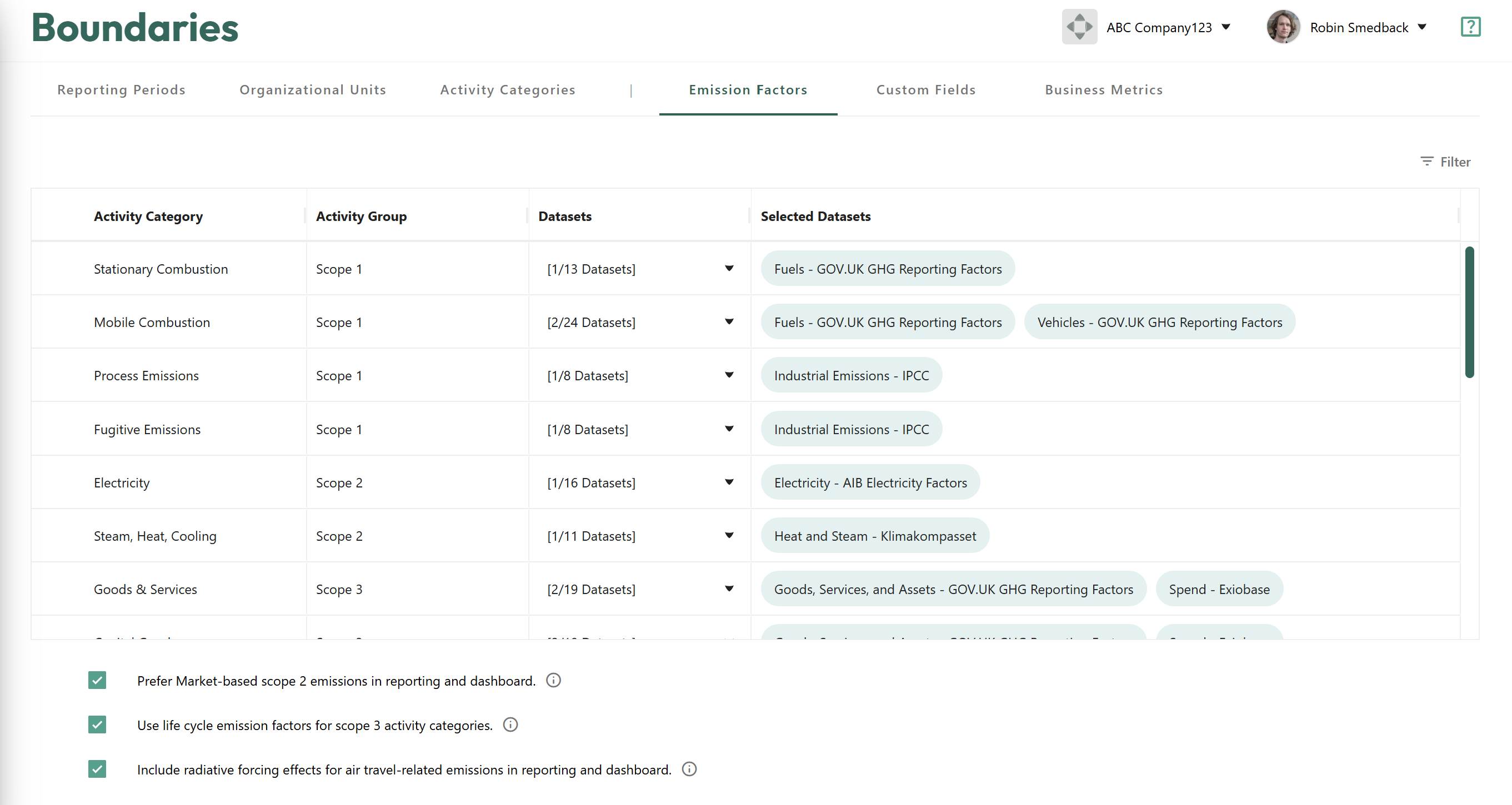
To change the preferred datasets for an activity category, click the dropdown in the Datasets column and select the options you want to use. You'll only see options for the factor categories that activity category accepts. Where an activity category accepts more than one factor category, you can pick a dataset for each. For example, Mobile Combustion can use one dataset for Fuels and another for Vehicles.
At the bottom of this view you will also find additional settings for:
- Your preferred reporting method for electricity emissions
- Toggling life cycle emissions on/off for Scope 3 activity categories
- Toggling on/off Radiative Forcing effects for air travel emissions
If you hover the info icon in-app you will get a more detailed explanation of each setting.
Using your custom datasets
Your custom emission factors follow exactly the same rules. Each custom factor has a Factor Category field, and this decides which activity categories the factor can be used in. Just like the standard datasets, your custom dataset can contain factors from many different factor categories.
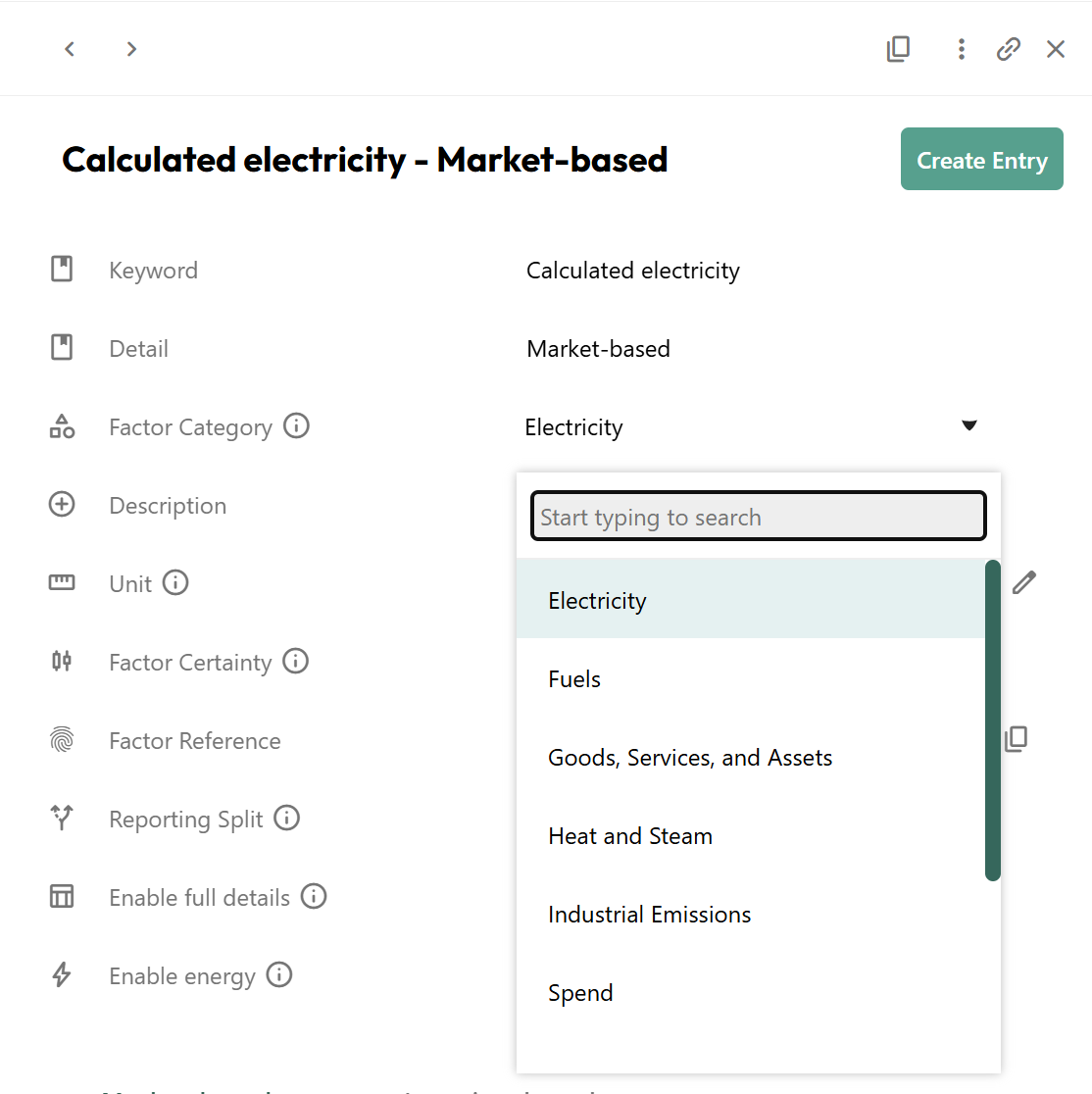
For example, a custom factor for Calculated electricity - Location-based with the factor category set to Electricity can be used in Electricity (Scope 2). Because several Scope 3 activity categories also accept Electricity, it can be used there too, for example in Leased Assets as Lessee.
To use your custom dataset as a preferred dataset:
- Decide which activity categories you want to use your custom factors in.
- Check the table above to find the factor categories those activity categories accept.
- Open each custom factor and set the Factor Category to match.
- Go to the Emission Factors tab in your boundaries and open the Datasets dropdown for the activity category.
- Select your custom dataset for the relevant factor category. It will now appear in the Selected Datasets column.
If you can't find your custom dataset in the dropdown, it most likely doesn't contain any factors in a factor category that activity category accepts. Check the factor category on your custom factors and try again.
A few things to keep in mind:
- One factor, one factor category: If you want the same value available in activity categories that accept different factor categories, create a separate custom factor for each.
- Spend works across Scope 3: Custom factors with the Spend factor category can be used in any Scope 3 activity category.
- Imports pick it up automatically: When you import using By Keyword and Detail, Carbon+Alt+Delete looks for factors in the preferred datasets for that activity category, so your custom factors will be matched without any extra steps.