
My Account Settings
Your account settings hold the details that belong to you personally, rather than to your company or consultancy: your name, your profile photo, the language you see the platform in, your password, and your login security. Changes you make here only affect your own account — no one else's view of the platform changes.
Finding your account settings
Click your name in the top-right corner of the app and select My Account Settings.
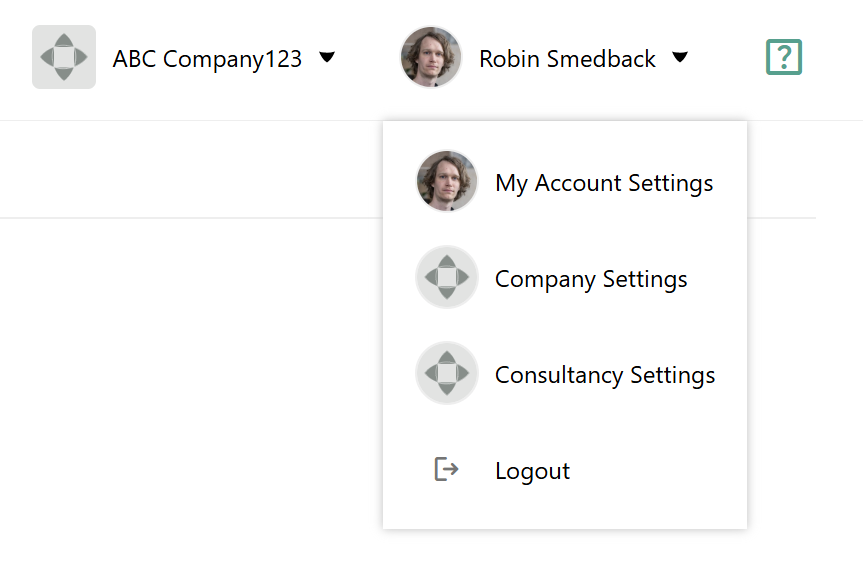
The same menu also gives you access to Company Settings and Consultancy Settings. Those pages hold settings that apply to everyone working on that company or consultancy — see Setting up your Consultancy and Customizing appearance to fit your brand.
My Account Settings has two tabs: Profile and Security.
Profile
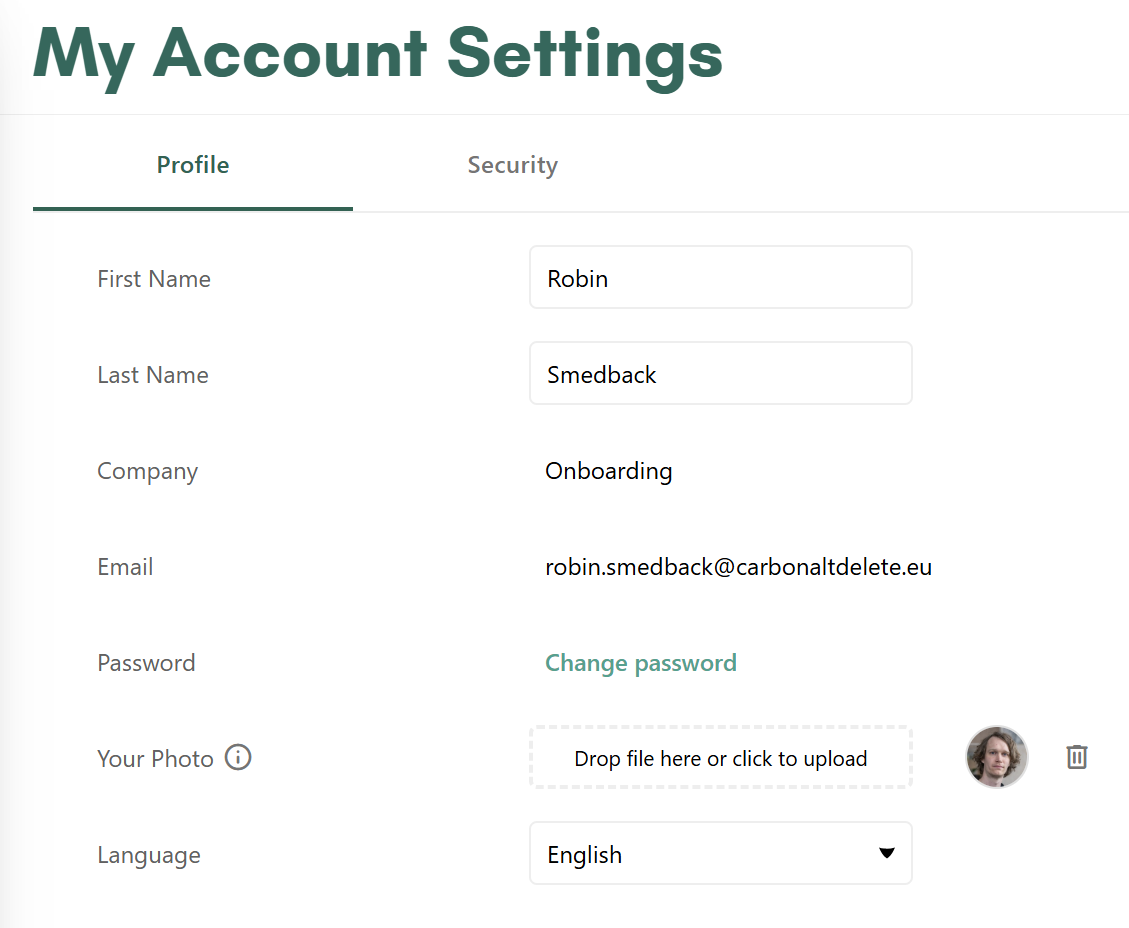
The Profile tab contains the following:
- First Name and Last Name: how your name appears throughout the platform, for example in user lists and on activity you have logged. You can edit both.
- Company: the company account your user belongs to. This is shown for reference and cannot be changed here.
- Email: the address you log in with and where platform notifications are sent. This is shown for reference and cannot be changed here.
- Password: click Change password to set a new one.
- Your Photo: drop an image onto the upload area or click it to browse. Your photo appears next to your name in the top-right corner of the app. To remove it, click the bin icon next to the preview.
- Language: the language the platform interface is displayed in.
Changing your name or photo
Type over the existing text in First Name or Last Name to change how your name is displayed. For your photo, you need to choose JPG or PNG. The file size cannot exceed 5 MB and the width needs to be at least 50px.
Your name and photo are visible to other users who share a company account or consultancy with you.
Changing your password
Click Change password. You will be asked for your current password before you can set a new one.
If you log in with Single Sign-On, your password is managed by your identity provider rather than by Carbon+Alt+Delete. See Setting up Single Sign-On (SSO).
If you have forgotten your current password, log out and use the "Forgot password" link on the login screen instead.
Changing your language
Carbon+Alt+Delete is available in the following languages:
- Czech
- Danish
- Dutch
- English
- Finnish
- French
- German
- Italian
- Portuguese
- Spanish
- Swedish
Pick one from the Language dropdown to switch. The setting applies to your account only — your colleagues keep whichever language they have chosen.
Security
The Security tab is where you enable and manage multi-factor authentication (MFA), which adds a second verification step to your login. MFA is set up by each user individually and is available to expert users and company users alike.
For the full walkthrough, including recovery codes and what to do if you lose your device, see Multi-factor authentication in Carbon+Alt+Delete.